rEFInd一个好用又好看的UEFI启动管理器
3 分钟阅读
使用 rEFInd 可以轻松实现多系统启动:Windows 10、macOS(基于 OpenCore)、Ubuntu 等。
软件版本:refind-bin-0.14.2(最新)
官网:http://www.rodsbooks.com/refind/
下载地址:https://sourceforge.net/projects/refind/
官方安装教程:http://www.rodsbooks.com/refind/installing.html
主题:rEFInd Minimal 、ursamajor-rEFInd
主题标签: https://github.com/topics/refind-theme
项目地址:https://github.com/techysy/rEFInd
项目结构
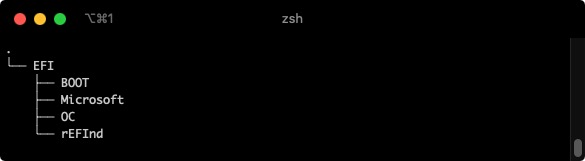
rEFInd/
├── EFI/                      # 配置好的 rEFInd,引导 OC 和 WIN,使用 minimal 主题
│   ├── refind_x64.efi        # 主程序
│   ├── refind.conf           # 配置文件
│   ├── drivers_x64/          # x64 驱动(ext4、ntfs、btrfs 等)
│   └── themes/               # 主题目录
├── refind-bin-0.14.2/        # 官方最新版本,包含驱动和安装脚本
├── refind-bin-0.11.4/        # 旧版本,保留供参考
├── Themes/                   # 主题包,可复制到 rEFInd 目录下使用
└── Screenshot/               # 截图展示
安装 rEFInd
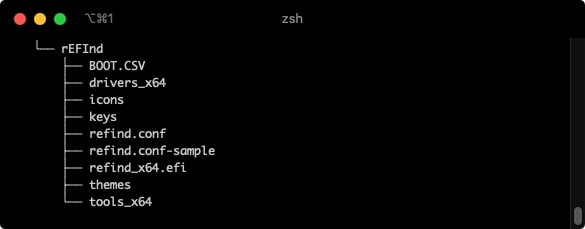
注意:安装脚本仅支持 Linux 和 macOS。Windows 用户需要手动安装。
Linux 自动安装
使用 refind-install 脚本是最简单的方式:
cd refind-bin-0.14.2
sudo ./refind-install
脚本会自动:
- 检测 ESP 分区(通常挂载在
/boot/efi) - 复制 rEFInd 文件到 ESP
- 安装必要的文件系统驱动
- 创建 EFI 启动项
可选参数:
# 使用 Secure Boot 的 Shim
sudo ./refind-install --shim /boot/efi/EFI/fedora/shimx64.efi

# 使用自定义密钥(需要先禁用 Secure Boot 或拥有自己的密钥)
sudo ./refind-install --localkeys

# 将 rEFInd 安装到指定位置
sudo ./refind-install --root /mountpoint
Linux 手动安装
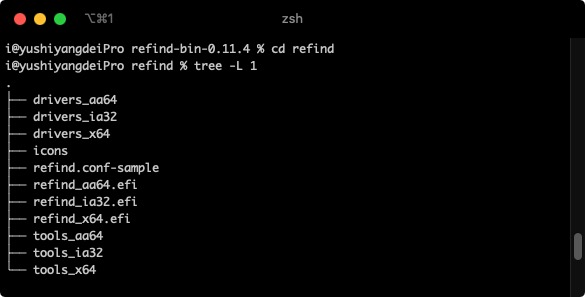
如果自动安装失败或需要精细控制,可手动安装:
- 挂载 ESP 分区(通常已挂载在
/boot/efi):
sudo mount /dev/sda1 /boot/efi
- 复制 rEFInd 文件到 ESP:
sudo cp -r refind-bin-0.14.2/refind /boot/efi/EFI/
- 删除不需要的架构文件(x64 系统只保留 x64):
sudo rm /boot/efi/EFI/refind/refind_ia32.efi /boot/efi/EFI/refind/refind_aa64.efi
sudo rm -r /boot/efi/EFI/refind/drivers_ia32 /boot/efi/EFI/refind/drivers_aa64
- 重命名配置文件:
sudo mv /boot/efi/EFI/refind/refind.conf-sample /boot/efi/EFI/refind/refind.conf
- 使用 efibootmgr 添加启动项:
sudo efibootmgr -c -l \\EFI\\refind\\refind_x64.efi -L rEFInd
- 调整启动顺序(将 rEFInd 设为第一启动项):
sudo efibootmgr -o 3,7,2 # 数字为启动项编号
macOS 自动安装
cd refind-bin-0.14.2
./refind-install
注意:macOS 10.11+ 需要先禁用 SIP(System Integrity Protection)才能安装。
禁用 SIP:
- 重启 Mac,按住
Command + R进入恢复模式 - 打开终端,输入:
csrutil disable
- 重启电脑
macOS 手动安装
- 挂载 ESP 分区:
# 使用自带的 mountesp 脚本
./mountesp

# 或手动挂载
sudo mkdir -p /Volumes/ESP
sudo mount -t msdos /dev/disk0s1 /Volumes/ESP
- 复制 rEFInd 文件:
sudo cp -r refind-bin-0.14.2/refind /Volumes/ESP/EFI/
- 删除不需要的文件:
sudo rm /Volumes/ESP/EFI/refind/refind_ia32.efi /Volumes/ESP/EFI/refind/refind_aa64.efi
- 重命名配置文件:
sudo mv /Volumes/ESP/EFI/refind/refind.conf-sample /Volumes/ESP/EFI/refind/refind.conf
- 使用 bless 命令设置启动项:
sudo bless --mount /Volumes/ESP --setBoot --file /Volumes/ESP/EFI/refind/refind_x64.efi --shortform
Windows 手动安装
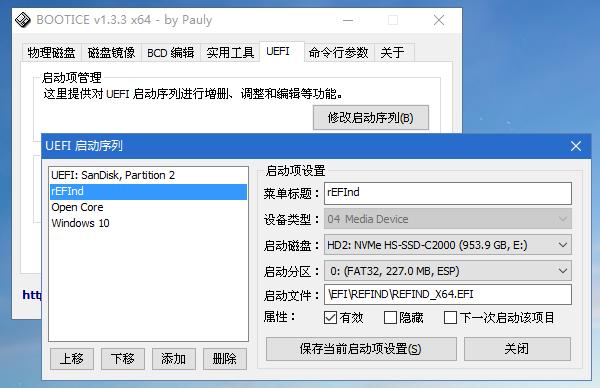
Windows 用户需要手动操作,推荐使用 EasyUEFI 工具,或使用命令行:
方法一:使用 bcdedit(命令行)
-
以管理员身份打开命令提示符
-
挂载 ESP 分区:
mountvol R: /S
- 复制 rEFInd 文件到 ESP:
xcopy /E refind-bin-0.14.2\refind R:\EFI\refind\
- 切换到 ESP 并删除不需要的文件:
R:
cd EFI\refind
del refind_ia32.efi refind_aa64.efi
rmdir /s drivers_ia32 drivers_aa64
- 重命名配置文件:
rename refind.conf-sample refind.conf
- 设置 rEFInd 为默认启动项:
bcdedit /set "{bootmgr}" path \EFI\refind\refind_x64.efi
bcdedit /set "{bootmgr}" description "rEFInd Boot Manager"
方法二:使用 EasyUEFI(图形界面)
- 下载并安装 http://www.easyuefi.com/
- 打开软件,选择「管理 EFI 启动项」
- 点击「添加」,选择「从文件添加」
- 浏览到
EFI\refind\refind_x64.efi,设置描述为「rEFInd」 - 将 rEFInd 移动到启动顺序的最顶端
卸载 rEFInd
Linux
# 删除文件
sudo rm -r /boot/efi/EFI/refind

# 删除启动项(先查看编号)
efibootmgr
sudo efibootmgr -b X -B  # X 为 rEFInd 的启动项编号
macOS
# 删除文件
sudo rm -r /Volumes/ESP/EFI/refind

# 恢复默认启动项(以 macOS 为例)
sudo bless --mount /Volumes/Macintosh\ HD --setBoot
Windows
- 使用 EasyUEFI 删除 rEFInd 启动项
- 删除
EFI\refind\目录 - 使用
bcdedit恢复默认启动项:
bcdedit /set "{bootmgr}" path \EFI\Microsoft\Boot\bootmgfw.efi
配置 refind.conf
参考 refind.conf-sample 进行配置,以下是配置示例:
# 屏幕保护程序(30秒后启动)
screensaver 30

# 选择等待时间(秒)
timeout 2

# 屏蔽自动搜索的启动项
dont_scan_files \EFI\Microsoft\Boot\bootmgfw.efi
dont_scan_dirs /EFI/BOOT,/EFI/Microsoft,/EFI/OC,/EFI/ubuntu

# 手动添加启动项并设置图标
menuentry Ubuntu {
    volume "Ubuntu 18.04.3 LTS"
    loader \EFI\ubuntu\grubx64.efi
    icon \EFI\refind\themes\rEFInd-minimal\icons\os_ubuntu.png
}

menuentry "Windows 10" {
    volume "Windows 10"
    icon \EFI\refind\themes\rEFInd-minimal\icons\os_win.png
    loader \EFI\Microsoft\Boot\bootmgfw.efi
}

menuentry "macOS 10.15.2" {
    volume "macOS boot"
    icon \EFI\refind\themes\rEFInd-minimal\icons\os_mac.png
    loader \EFI\OC\OpenCore.efi
}

# 启用主题
include themes\rEFInd-minimal\theme.conf
# include themes\ursamajor-rEFInd\theme.conf